Triaster QMS vs Visio and SharePoint: Running a QMS People Use
·
Editor's note (November 2026): This guide was first published in 2015, when the Triaster platform was built on Microsoft Visio. Triaster QMS, launched in 2022, no longer uses or needs Visio. We have rewritten the guide to compare Visio and SharePoint with Triaster QMS as it works today.
Why so many QMSs start in Visio and SharePoint
Many quality teams build their first quality management system with tools the organisation already owns. Processes are drawn in Visio, saved to a SharePoint site, and procedures and forms sit in document libraries next to them. It costs nothing extra, IT is comfortable with it, and for a handful of processes it works.
The difficulty comes later. As the number of processes grows, the quality team spends more and more time keeping drawings, documents, links, approvals and review dates in step. Meanwhile, the people the QMS is meant to help find it hard to navigate, are not sure which version is current, and stop using it. A QMS that is not used gives little back, however good the content.
Visio and SharePoint are good general tools. The question this guide answers is narrower: are they the right way to run a QMS that people actually use?
What a QMS has to do
ISO 9001 asks an organisation to determine its processes and how they interact, assign responsibilities and authorities, and control its documented information so it is approved, current and available to the people who need it. In practice, that means a QMS has to do four jobs well:
- Show how work is done, in a form people can follow.
- Control change, so only approved content is published and its history is kept.
- Stay current, with owners, scheduled reviews and reminders.
- Be used, so staff turn to it for answers and you can see that they do.
This follows our process approach: processes should be Useful, Usable and Used.
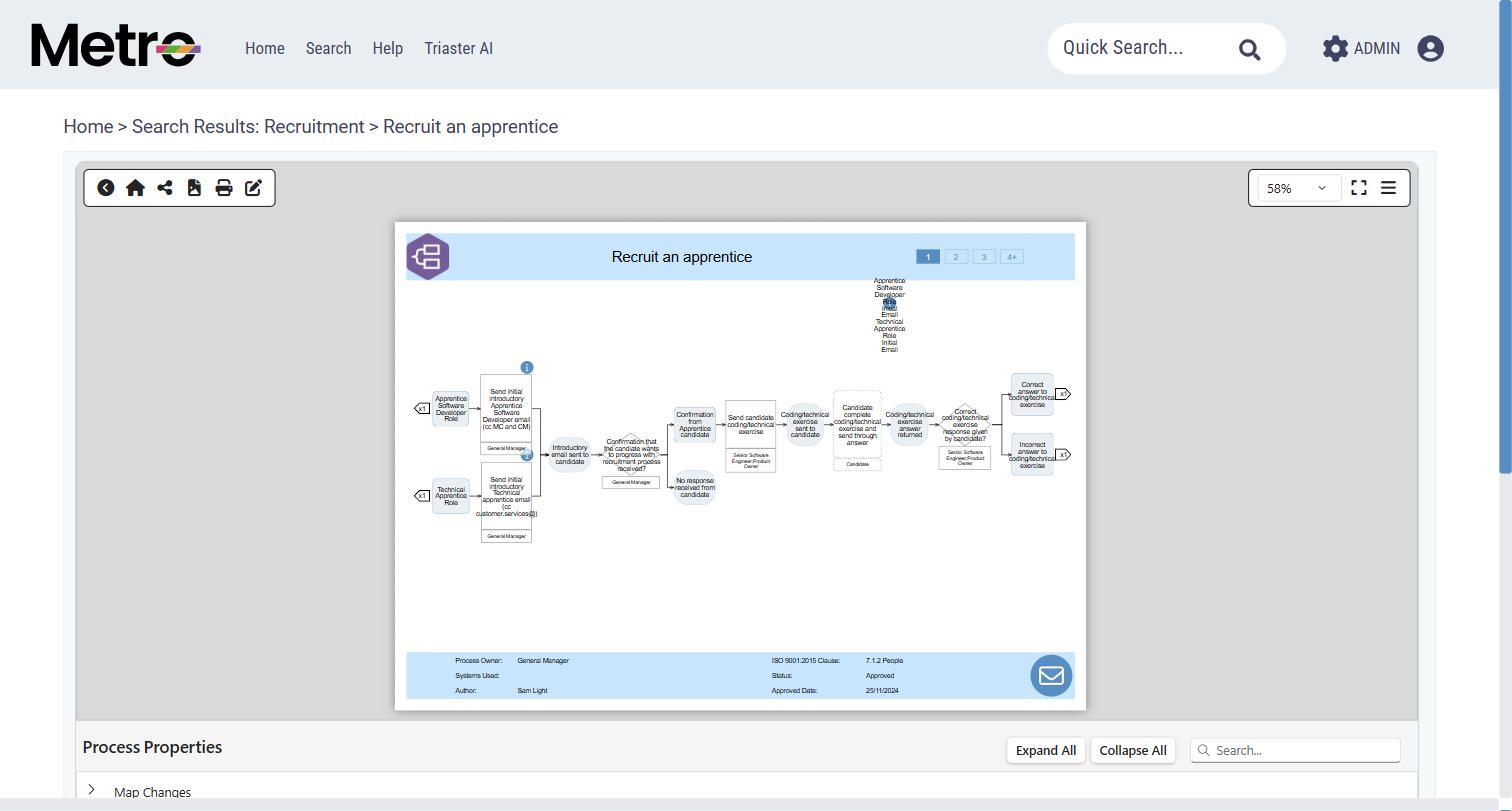
Visio and SharePoint compared with Triaster QMS
The table compares what quality teams typically need with how each approach handles it. What you see in Triaster QMS depends on how your library is set up and which features are switched on.
| What the quality team needs | Visio and SharePoint | Triaster QMS |
|---|---|---|
| Map processes consistently | Visio offers a very wide choice of shapes. Consistency depends on templates and on every author applying them the same way. | Authors build maps in the Triaster QMS map editor using your library's chosen stencil. The editor can check a map for issues and check spelling before it goes for approval. |
| Link processes, documents and websites | Hyperlinks are added and kept up to date by hand, one drawing at a time. When a file moves or is renamed, links can quietly break. | Steps in a map can link to another process, a document or a website, and process pathways help readers follow work from one process into the next. |
| Approve changes before they go live | SharePoint can be configured with approval flows, but someone has to design, build and maintain them. | Authors work in a draft and submit it to the people who must approve it. The draft is locked while it is reviewed. Approvers approve it or send it back with feedback, and only then does it become the published map. |
| Keep a history of every approved version | SharePoint keeps file versions. Working out what changed in a drawing, and who agreed it, usually means opening old files side by side. | Earlier approved versions stay in each process's history, along with the description of each change. |
| Review processes on a schedule | Review dates are usually tracked in a spreadsheet or a calendar, and chasing them is a manual job. | Reviewers confirm that a published process still looks right or mark it as needing work. Completed reviews are recorded, the next one can be scheduled, and the library sends reminders about upcoming and overdue reviews. |
| Control documents | SharePoint libraries offer versioning, check-out and content approval. Connecting each document to the processes that rely on it is left to you. | Controlled documents have a reference, chosen approvers, check-out, separate version records and a history of decisions. Until a change is approved, the existing approved version stays current. Documents can be marked obsolete, archived and restored. |
| Show who does what | Roles can be written onto shapes or stored as shape data, but pulling that together across many drawings takes real effort. | Search by Role shows where a job role is responsible, accountable, consulted or kept informed (RACI) across the library. |
| Help people find the right process | Search finds files. Readers then have to open a drawing or a document and work out whether it is the current one. | Search covers process maps, the information recorded on them, menu pages and documents. A quick search box sits in the library header, and where connected, SharePoint documents can appear in the same results. |
| Limit who can see sensitive processes | Permissions are set on sites, libraries, folders or files, and can drift as content moves around. | An authorised person can restrict a process to particular roles. People without access cannot open it, even by following a direct link. |
| See whether the QMS is actually used | SharePoint usage figures show visits to sites and files, not how people use your processes. | Dashboards can show active users, frequently viewed processes and process visits over time. You can also connect Google Analytics, or Power BI and other reporting tools. |
| Make one change across many processes | Changes such as a renamed job role are made file by file. | People with the right access can export process information to Excel, import supported changes, or find and replace information across several maps. |
| Manage risks and controls alongside processes | Risks and controls usually live in separate spreadsheets or lists, out of step with the processes they relate to. | Optional Registers hold risks, controls and other records with owners, ratings, actions, approvals and reviews, linked to the relevant processes and controls. |
| Give the QMS a front door people recognise | SharePoint pages can be designed, often with specialist help, and kept in line with the drawings separately. | The library home page can be arranged around topics, departments or other categories, and its colours, icons and images can be tailored to your organisation. |
Bringing your Visio maps with you
If your processes are already in Visio, you do not have to start again. Existing Visio maps can be imported into Triaster QMS, so the work your teams have already done carries across. From then on, maps are edited, approved and published in Triaster QMS, and nobody needs a Visio licence to author or read them.
When Visio and SharePoint are enough
For a small organisation with a few stable processes and one experienced author, Visio and SharePoint can be perfectly adequate. It is usually time to look again when you notice signs like these:
- Maps and procedures are out of date, and nobody is sure which version is current.
- Approvals happen by email, and the evidence is hard to find at audit time.
- Review dates slip because they are tracked in a spreadsheet.
- Links between processes and documents break when files move.
- Staff ask colleagues rather than look in the QMS.
- You cannot tell whether anyone is using it.
If several of these sound familiar, the problem is rarely the content. It is the effort needed to keep the system governed and the barriers to people using it.
Next steps
To see where your own QMS stands, try the free QMS Value Diagnostic. It takes about five minutes, and your answers stay confidential. To see what Triaster QMS does in detail, read about its features, or talk to us about moving your Visio and SharePoint QMS across.